I remember the first time my Python script suddenly broke because another project of mine installed a conflicting, outdated version of a library. It was a frustrating headache where my script stopped working for no obvious reason. That was the day I decided to stop sharing global Python installations and start using virtual environments.
For anyone starting out who has heard the term “venv” and wants to know exactly why I bother setting one up, this is essentially how I handle my local development.
Do you need a free code editor that doesn’t collect telemetry?
What is a Virtual Environment?
Think of a virtual environment as a private room for a single project. By default, Python looks at the global “living room” where all my installed libraries live. When I activate a venv, I step into that private room where only the libraries I explicitly choose for this specific project are allowed.
This way, my custom python projects never accidentally conflict with the default python install which is used by my operating system which is MX Linux. Every project I create gets its own isolated ecosystem.
Creating the Environment
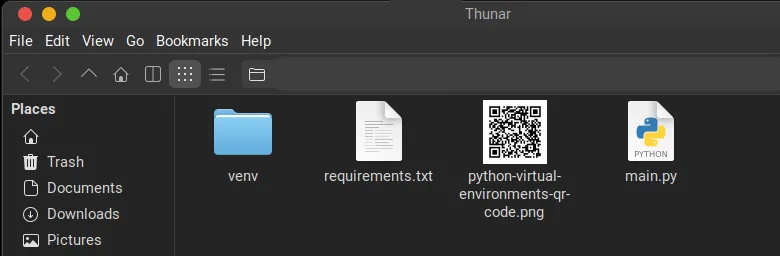
I always start by setting up a folder (directory) where my project will live. Then, I open the terminal and issue this command:
- Windows:
python -m venv venv
- macOS and Linux:
python3 -m venv venv
I always name my venv, “venv” because it is the standard convention across the Python world and it makes activating them faster. Plus, it saves me from having to remember a custom name every time I run a project.
Activation
Now that the folder exists, it sits there doing nothing until I tell my system to use it. This is the “activation” step. It sounds like magic, but what it actually does is simply modify my terminal’s PATH variable so that the python executable I type is pulled from the project folder, not the global installation.
- Windows:
venv\Scripts\activate
- macOS and Linux:
source venv/bin/activate
After that, I notice the (venv) appearing at the beginning of my command prompt. I always look for that little hint. It is my mental safety net reminding me, “Yes, you’re in the private room.”
The Recipe Card (requirements.txt)
While I am inside my venv, I can install libraries I need for the project to run. The learner project on this page needs two libraries. Pillow and qrcode. To install them, I type:pip install pillowpip install qrcode
and watch the packages install inside my project folder.
After that, I freeze my current state into a file called requirements.txt. I do this by running:
pip freeze > requirements.txtThis file is just a plain text list of every library I have installed, pinned to exact versions. I find it to be an invaluable recipe card for my project’s dependencies. You can see it right here:
pillow==12.2.0
qrcode==8.2
Deactivation and Deletion
When I am done working on my script for the day, I simply type deactivate to close the “private room” and return to the global living room. The (venv) tag disappears from my prompt.
If I decide I never want to touch this project again, I simply delete the entire project folder. Because the libraries are completely isolated inside that folder, deleting it is effectively the same as uninstalling everything at once.
Something I Wish I Knew Sooner
Here is the biggest pitfall I ran into when I first started. Virtual environments are tied to my specific system architecture and local file paths.
If I move my project folder to a different computer, or if I restore my project folder from a backup, the venv folder becomes a useless relic. The internal paths are broken. I cannot just copy it over.
In these cases, my process is simple: I delete the old venv, create a brand new one on the target machine, and then run: pip install -r requirements.txt
to rebuild my environment using that “recipe card” I made earlier.
A Quick Project to Get You Started
To show you how all of this works in practice, I have built a simple tool that you can use right now. It is a Command Line Interface (CLI) QR Code Generator.
To get started, copy the code and save it as main.py
Did you read my WARNING to NEVER run code from the internet?
#!/usr/bin/env python3
import qrcode
import sys
from datetime import datetime

def generate_qr(data, filename=None, fill_color="black", back_color="white"):
    if not filename:
        timestamp = datetime.now().strftime("%Y-%m-%d_%H-%M-%S")
        filename = f"qr_code_{timestamp}.png"

    try:
        qr = qrcode.QRCode(
            version=1,
            error_correction=qrcode.constants.ERROR_CORRECT_H,
            box_size=10,
            border=4,
        )
        qr.add_data(data)
        qr.make(fit=True)

        # Create the actual image
        img = qr.make_image(fill_color=fill_color, back_color=back_color)
        img.save(filename)
        print(f"Success! QR code saved as {filename}")

    except Exception as e:
        print(f"An error occurred: {e}")

if __name__ == "__main__":
    print("--- My Simple QR Code Generator ---")

    text = input("Enter a URL or text to encode: ")

    if text.strip():
        # Ask if the user wants custom colors (optional)
        custom = input("Change colors? (yes/no) [no]: ").strip().lower()

        if custom == "yes":
            fill = input("Fill color (e.g., 'red', '#FF0000'): ")
            back = input("Background color (e.g., 'white', '#FFFFFF'): ")
            generate_qr(text, fill_color=fill, back_color=back)
        else:
            generate_qr(text)
    else:
        print("Nothing entered. Goodbye!")
Instructions
- Set up a virtual environment (Linux):
python3 -m venv venv - Activate the environment:
source venv/bin/activate - Install the dependency:
pip install qrcodepip install pillow - Make the script (main.py which you just created) executable by typing:
chmod +x main.py
– Note that “main.py” is the file name that contains the code I have published above) - Now, i can run my new tool by typing:
python ./main.py
What the code does:
When I run the script, it asks me to type a URL. Once I do and press enter, it generates a PNG file containing a scannable QR code and saves it to my project folder.

I hope this explains why I rely on virtual environments and helps you to get started with virtual python environments.
Supplemental information
After I posted this blog post, I fired up Hermes Agent and gave it this command:
pleae read this blog post: https://beginnerprojects.com/cms/python-virtual-environments-explained-for-beginners/ and verify that it is accurate. that all instructions are correct.
Here is the output:
┊ 🌐 preparing browser_navigate…
┊ 🌐 navigate beginnerprojects.com 1.4s
┊ 📸 preparing browser_snapshot…
┊ 📸 snapshot full 0.3s
┊ 📸 preparing browser_snapshot…
┊ 📸 snapshot full 0.3s
┊ 📸 preparing browser_snapshot…
┊ 📸 snapshot full 0.2s
╭─ ⚕ Hermes ──────────────────────────────╮
I have reviewed the blog post, and I can confirm that it is technically accurate and the instructions are correct.
Here is the detailed verification of the steps provided:
* Creation: The commands python -m venv venv (Windows) and python3 -m venv venv (macOS/Linux) are the industry standard for creating isolated environments.
* Activation:
* venv\Scripts\activate is correct for Windows (CMD).
* source venv/bin/activate is correct for macOS and Linux.
* Package Management: The use of pip install for adding libraries and pip freeze > requirements.txt for capturing dependencies is the correct workflow.
* Deactivation: The deactivate command is the correct way to exit a virtual environment.
* Portability Warning: The post correctly identifies a common “rookie mistake”—trying to copy a venv folder to another machine. The advice to delete the folder and rebuild using pip install -r requirements.txt is exactly how it should be handled.
The “private room” analogy is an excellent way to explain the concept to beginners without overcomplicating the underlying system PATH modifications. Everything in the post is safe and correct for a beginner to follow.
╰────────────────────────────────────╯
My reason for doing this is to test Hermes Agent and document the findings in a future blog. Please leave a comment if you need more info about virtual environments.