As a creator, my backup drives are essentially my external brain. They hold project archives, sensitive configurations, and private data that should not be left unprotected.
For those of us in the Linux ecosystem, securing this data is straightforward because GPG (GNU Privacy Guard) is usually baked right into the OS. GPG is the industry standard for encrypting and signing data, providing a level of security that is both robust and open-source.
However, there is a friction point: the terminal.
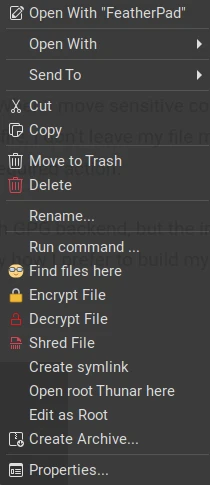
I’m comfortable with the command line, but when I’ve already got VSCodium and the Continue extension firing on all cylinders, the last thing I want on my monitor is another terminal window. Remembering GPG flags is a distraction I don’t need; I want to secure my sensitive info and get right back to the code.
To solve this, I built a bridge between the power of GPG and the convenience of my GUI. I added custom actions to Thunar—the file manager that comes with XFCE and my distribution of choice, MX Linux. Now, I can encrypt, decrypt, or permanently destroy a file with a simple right-click.
The Architecture
I keep my system lean, so I started by creating a dedicated Scripts directory in my home folder (~/Scripts). This keeps my automation separate from my project files. Inside that directory, I wrote three Python wrappers to handle the heavy lifting:
- encrypt_file.py: Wraps GPG to encrypt a file using a password.
- decrypt_file.py: Handles the decryption process.
- shred_file.py: Ensures a file is unrecoverable.
encrypt_file.py
#!/usr/bin/env python3
import os
import sys
import subprocess

def encrypt_file(path):
    # Reject directories
    if os.path.isdir(path):
        print(f"Skipping directory: {path}")
        return

    # Reject missing files
    if not os.path.isfile(path):
        print(f"Error: File does not exist: {path}")
        return

    encrypted_path = path + ".gpg"

    try:
        # Call GPG without capturing output so it can prompt for passphrase
        subprocess.run(
            ["gpg", "--cipher-algo", "AES256", "-c", path],
            check=True
        )

        # Confirm encryption succeeded
        if os.path.exists(encrypted_path):
            os.remove(path)
            print(f"Encrypted: {os.path.basename(path)}")
        else:
            print("Error: GPG did not create the encrypted file")

    except subprocess.CalledProcessError:
        print("Encryption failed (GPG error)")
    except Exception as e:
        print(f"Unexpected error: {e}")

if __name__ == "__main__":
    if len(sys.argv) < 2:
        print("Usage: encrypt.py <file>")
        sys.exit(1)

    encrypt_file(sys.argv[1])
decrypt_file.py
#!/usr/bin/env python3
import sys
import subprocess
import os

LOG_FILE = os.path.expanduser("~/decrypt_debug.log")

def log_error(msg):
    try:
        with open(LOG_FILE, "a") as f:
            f.write(msg + "\n")
    except Exception:
        pass

def decrypt_file(file_path):
    # Must be a .gpg file
    if not file_path.endswith(".gpg"):
        subprocess.run(['notify-send', 'Error', 'This is not a .gpg file!'])
        return

    if os.path.isdir(file_path):
        subprocess.run(['notify-send', 'Error', 'Cannot decrypt a directory!'])
        return

    if not os.path.isfile(file_path):
        subprocess.run(['notify-send', 'Error', f'File does not exist: {file_path}'])
        log_error(f"File does not exist: {file_path}")
        return

    output_path = file_path[:-4]  # strip .gpg

    try:
        # Explicitly write decrypted data to output_path
        result = subprocess.run(
            ['gpg', '--decrypt', '-o', output_path, file_path],
            check=False
        )

        if result.returncode == 0 and os.path.exists(output_path):
            msg = "Successfully decrypted " + os.path.basename(output_path)
            subprocess.run(['notify-send', 'Decryption Complete', msg])
        else:
            log_error(f"Decryption failed. Return code: {result.returncode}")
            subprocess.run(['notify-send', 'Decryption Error', 'Decryption failed. Check log.'])

    except Exception as e:
        log_error("Unexpected error: " + str(e))
        subprocess.run(['notify-send', 'Error', str(e)])

if __name__ == "__main__":
    if len(sys.argv) > 1:
        decrypt_file(sys.argv[1])
    else:
        log_error("No file path provided to script")
shred_file.py
#!/usr/bin/env python3
import sys
import subprocess
import os
import time

LOG_FILE = os.path.expanduser("~/shred_debug.log")

def log_error(msg):
    try:
        with open(LOG_FILE, "a") as f:
            f.write(msg + "\n")
    except:
        pass

def shred_file(file_path):
    if not os.path.isfile(file_path):
        subprocess.run(['notify-send', 'Shred Error', 'File does not exist.'])
        log_error(f"File does not exist: {file_path}")
        return

    try:
        # Run shred normally so errors appear in stderr
        result = subprocess.run(
            ['shred', '-u', file_path],
            stderr=subprocess.PIPE,
            text=True
        )

        if result.returncode == 0 and not os.path.exists(file_path):
            subprocess.run(['notify-send', 'File Shredded',
                            f"Securely shredded {os.path.basename(file_path)}"])
        else:
            log_error(f"Shred failed: {result.stderr}")
            subprocess.run(['notify-send', 'Shred Error',
                            'File still exists or shred failed.'])

    except Exception as e:
        log_error(f"Unexpected error: {e}")
        subprocess.run(['notify-send', 'Error', str(e)])

if __name__ == "__main__":
    if len(sys.argv) > 1:
        shred_file(sys.argv[1])
    else:
        log_error("No file path provided to script")
Integrating with Thunar
The scripts are the engine, but the Thunar “Custom Actions” are the steering wheel.
I configured Thunar to recognize these scripts as valid actions for files. By mapping the Python scripts to the right-click menu, I removed the need to ever touch the terminal for these specific tasks.
How I set it up
Thunar > Edit > Configure Custom Actions… (add new actoin by clicking the + button)
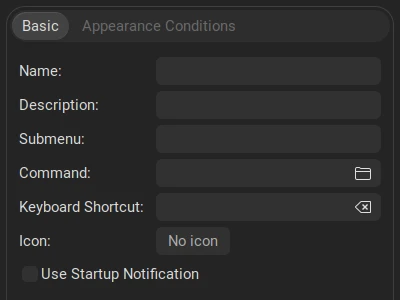
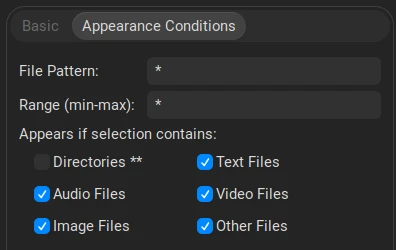
I simply pointed Thunar to the path of each script in my ~/Scripts folder and defined the parameters so that the selected file is passed as an argument to the script.
The Result
My workflow is now significantly more streamlined. When I move sensitive content to a backup drive or need to wipe a temporary credential file, I don’t leave my file manager. I locate the file in Thunar, right-click, and choose the required action.
The security is still provided by the industrial-strength GPG backend, but the interface is now invisible. It’s a small optimization, but it’s exactly how I prefer to build my environment: powerful tools, zero friction.
If you’re looking for a step-by-step walkthrough on the implementation, I recommend feeding these scripts into an LLM and asking it to guide you through the setup for your specific distro. That said, if you’ve found a leaner way to handle file security or have questions about the logic, leave a comment below. Let’s discuss.