If you spend any time in the AI space, you’ve probably developed a bit of “RAM envy.”
You see the YouTubers and the power-users showcasing massive models running on Mac Studios with 128GB or 256GB of unified memory. It’s impressive, but for most of us, it’s irrelevant. Most of us aren’t dropping $10,000 on a workstation.
I wanted to see what was actually possible on a baseline machine. I have a Mac Studio M4 Max with 36GB of memory, and I’ve spent the last few months proving that you don’t need a super-computer to develop professional software locally.
My “Headless” Strategy: The Best of Both Worlds
Here is a secret about my workflow: I don’t actually “work” on my Mac.
I’ll be honest—I’ve never fully adapted to macOS. The shortcuts and the window-activation workflow (having to click a window just to paste code) always felt like a friction point for me. I prefer the speed and fluidity of Linux.
So, I did something a bit unconventional: I didn’t even install Homebrew on the Mac.
Instead, I treat my Mac Studio as a dedicated AI Server. I use a basic Dell PC running Linux as my primary interface, accessing the Mac’s power via Ollama. This allows me to keep the Linux workflow I love while leveraging the incredible unified memory of the M4 Max in the background. It’s a headless powerhouse.
The Rotation: What Actually Works on 36GB?
Since the fall of 2025, I’ve cycled through dozens of LLMs. But as of today, my “daily drivers” for programming and web design have narrowed down to two: Gemma 4:31b and Qwen 3.5:27b.
For a long time, qwen3-coder was the gold standard. But the latest Qwen 3.5 release is such a jump in capability that it has effectively replaced everything else for my coding needs. Whether I’m grinding through complex backend logic or polishing a front-end design, these two models handle it all without breaking a sweat.
Why I Switched to Ollama (The Stability Factor)
When you’re working with limited RAM, stability is everything.
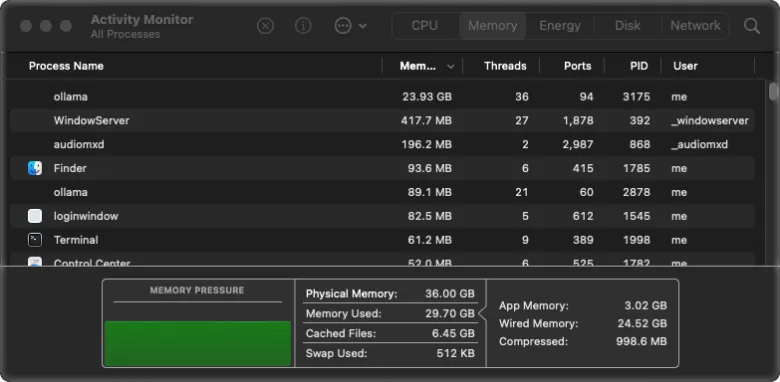
I used to use LMStudio, but I kept hitting a wall: memory spikes. I’d watch my system monitor climb to 33GB, and then—crash. The whole model would drop, and I’d have to restart.
Switching to Ollama changed the game. By using a precise config.yaml via the Continue extension, my memory usage hovers steadily around 29GB. It is rock solid. I can leave a massive model like gemma4:31b running for hours on end without a single crash.
The Ecosystem in Action
To give you a real-world example: every piece of software I’ve developed for Beginner Projects was built using this hybrid local setup:
- The Heavy Lifting (Mac Studio 36GB): Running Qwen 3-Coder, Gemma 4:31b, and Qwen 3.5:27b.
- The Mobile Station (2021 Zephyrus Laptop): Running MX Linux AHS. This handles the lighter gemma4:26b adn gemma4:e4b models, alongside my creative stack: ComfyUI, Forge WebUI, and Qwen3TTS.
Final Thought: Stop Waiting for the “Perfect” Rig
The biggest hurdle in AI development isn’t the hardware—it’s the belief that you need “the best” hardware to start.
You do not need 128GB of RAM to be a high-level AI developer. With a smart server strategy, a baseline Mac Studio or Mac Mini, and a stable engine like Ollama, you have more than enough power to build powerful software.