Right now, “Agents” are the biggest buzzword in the AI gold rush.
The promise is seductive: a tool that doesn’t just suggest code in a chat window, but actually acts on your system—managing files, scraping data, and executing terminal commands autonomously.
But after a few weeks of experimentation, I’ve realized there’s a steep learning curve to using agents effectively. The secret isn’t just in the software you choose, but in how you deploy it.
The “Thin Client” Strategy: High Power, Low Footprint
One of the most impressive aspects of Hermes Agent is its resource efficiency on the client side.
I currently run Hermes on an older, 2019 Dell PC—a modest machine with a basic i3 CPU and no dedicated GPU. Normally, a machine like this would choke on modern AI tools. But because Hermes is designed as an orchestrator, I can treat this PC as a “Thin Client.”
When I launch Hermes, the CPU graph on my XFCE desktop barely moves. Why? Because the “brain” isn’t actually in the Dell; it’s hosted over the LAN on my Mac Studio M4 Max or my Zephyrus laptop. This allows me to have a dedicated “Agent Station” that costs almost nothing in hardware overhead, while the heavy lifting happens elsewhere.
The 90/10 Rule: Hermes vs. VSCodium
A common mistake beginners make is trying to use an Agent for every single task. Let me be clear: For 90% of my coding, VSCodium paired with the Continue extension is faster and more efficient.
But there is a “10% zone” where a standard editor simply cannot go.
Hermes Agent is a specialist. If I need to perform complex Linux system administration or deep web scraping—tasks that require the AI to “step out” of the code editor and interact directly with the OS—Hermes is the only tool I’ve found that can do it reliably.
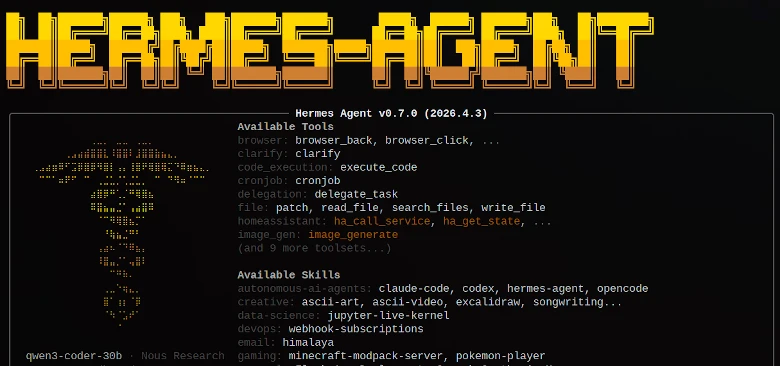
The Quick Start (The “No-Fuss” Config)
What I appreciate about Hermes is that it doesn’t force me to rerun a complex setup every time I want to switch models. Everything is controlled via a simple YAML file.
Since I use Linux, I can jump straight into the guts of the system: nano ~/.hermes/config.yaml
To point Hermes toward my local LLM server (like Ollama running on your Mac), my config looks like this:
model:
  default: gemma4:26b
  provider: custom
  base_url: http://192.168.1.100:11434/v1

(Just replace that IP address with the actual local IP of your host machine.)
The “Thermal” Reality of AI
There is a fascinating physical contrast in this setup. While the client (the Dell PC) stays cool, the host (the Mac Studio) tells a different story.
I use the Mac Studio for heavy creative work—running the Affinity Studio suite or Harrison Mixbus—and the machine stays virtually silent and cool. But when Hermes is pushing a large model, the Mac Studio case actually gets warm to the touch.
It’s a vivid reminder that while “Agentic AI” feels like magic, it is actually an intense physical process involving billions of calculations per second. You can literally feel the electricity turning into intelligence.
Looking Ahead
We are still in the “early days” of the Agentic era. Hermes is currently at version 0.8, and the development speed is breathtaking. The capabilities are expanding weekly.
For now, the strategy remains: VSCodium and Continue for the bulk of the development, and Hermes as the specialist for system-level tasks. But the technology is moving fast. I’ll be keeping a close eye on the updates to see when the “10% zone” starts to grow into something larger.
The future isn’t just about better models; it’s about better agents.