Why a Code Editor Is Essential
To write code effectively you need an editor that’s built for coding. VSCodium is our choice on Windows, macOS, and Linux because it offers powerful features while being easy to use.
We write code on GhostBSD with Geany, an editor that’s similar to VS Code. The beginner projects we provide for our students will run in any editor
Get the Latest Version from GitHub
The newest release of VSCodium lives on its official GitHub page.
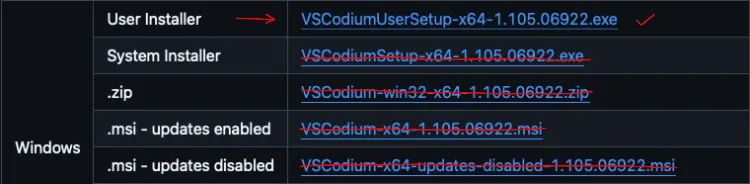
When you’re there, take a moment to read the file names carefully. Selecting the wrong build (for example, choosing an installer for a different operating system or architecture) will cause problems. If you’re unsure which file to pick, leave a comment below and we’ll help you choose the right one.
Windows users can also use Chris Titus’s handy utility that turns installing code editors like VSCode, Python, PHP, and more into a single‑click experience. It’s worth checking out if you want an even faster setup on Windows.
macOS
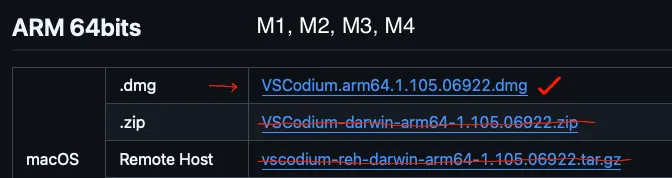
If you’re using a Mac with an Apple Silicon (M1 or newer.) processor, be sure to select the ARM‑64 build from the GitHub releases page.
Linux
Install VSCodium by downloading the appropriate package from the VSCodium GitHub releases page, or use your distribution’s package manager.
You’re Ready to Code!
Congratulations on taking the first step toward programming. Once VSCodium is installed, nothing else is needed to start writing code. We can’t wait to share working projects with you and see what amazing things you’ll build.